Create a relation
Relations define how rows in one table connect to rows in another table.
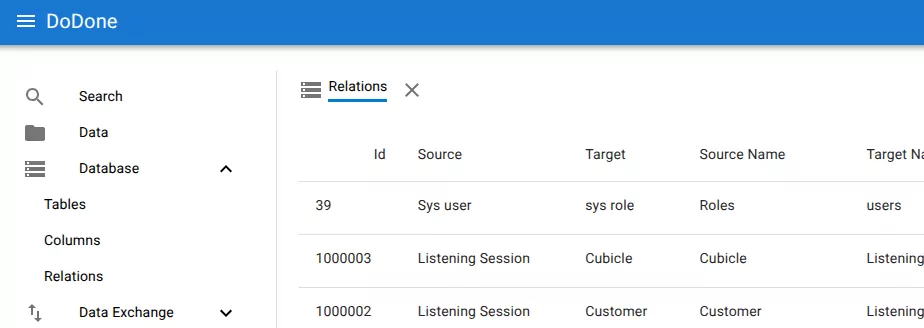
1. Open the relations view
Open Database → Relations from the navigation menu.
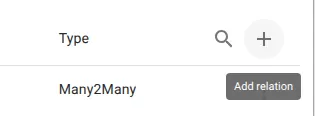
2. Click add relation
Click the + button in the top-right corner of the relations list.
3. Configure the source side
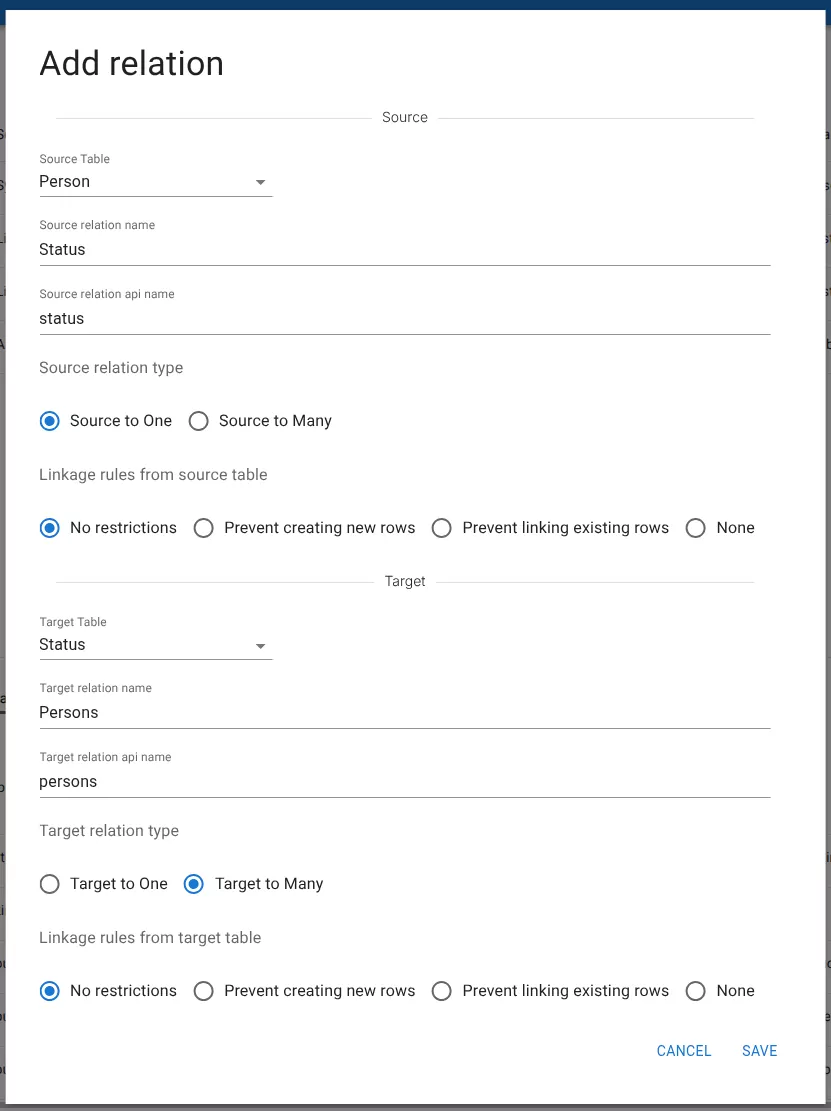
In the Source section, configure the table where the relation starts.
Fields include:
- Source Table – the table the relation starts from
- Source relation name – the name used in the interface
- Source relation API name – the identifier used internally and in integrations
- Source relation type
- Source to One
- Source to Many
You can also define linkage rules for how rows from the source table may be connected.
Options include:
- No restrictions
- Prevent creating new rows
- Prevent linking existing rows
- None
4. Configure the target side
In the Target section, configure the table the relation points to.
Fields include:
- Target Table
- Target relation name
- Target relation API name
- Target relation type
- Target to One
- Target to Many
Linkage rules can also be configured for the target table.
5. Save the relation
Click Save to create the relation.
The new relation will appear in the relations list and can immediately be used throughout the system.
Related resources
Understand the concept
Reference