Add a column
Columns define the fields stored in a table.
Each column represents a single attribute for rows in that table.
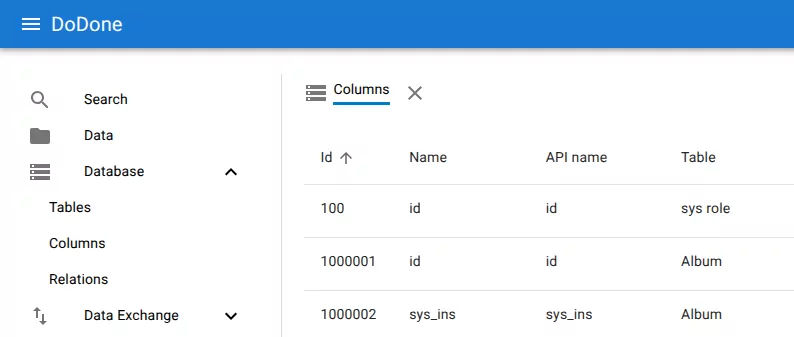
1. Open the columns view
Open Database → Columns from the navigation menu.
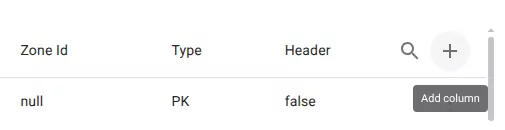
2. Click add column
Click the + button in the top-right corner of the columns list.
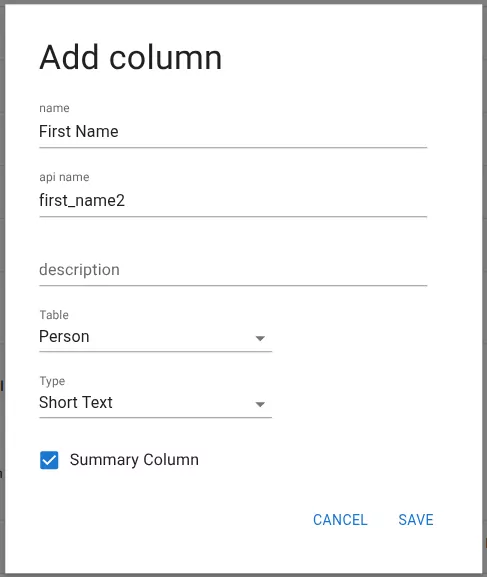
3. Configure the column
Fill in the column settings in the Add column dialog.
Required fields typically include:
- Name – the display name used in the interface
- API name – the identifier used internally and in integrations
- Table – the table the column belongs to
- Type – the column data type
Optional fields include:
- Description
- Summary Column
4. Save the column
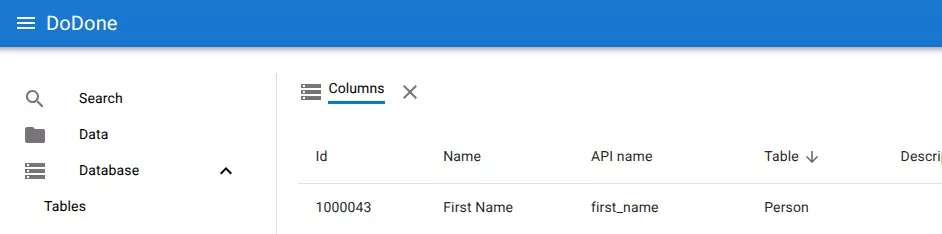
Click Save to create the column.
The column will immediately appear in the columns list.
Related resources
Understand the concept
Reference