Create a schedule
Schedules define how time intervals combine to produce usable booking slots.
Open schedules
Navigate to:
Booking → Schedules
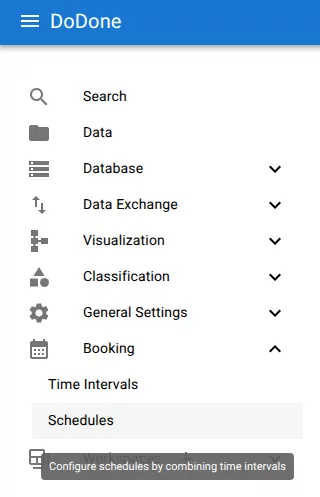
Create the schedule
Click the + icon.
This opens the Add schedule dialog.
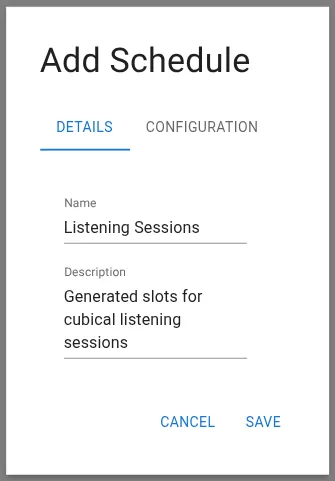
Enter schedule details
Provide:
Name
A descriptive name for the schedule.
Examples:
Description
Optional explanation of what the schedule is used for.
Configure the schedule
Open the Configuration tab.
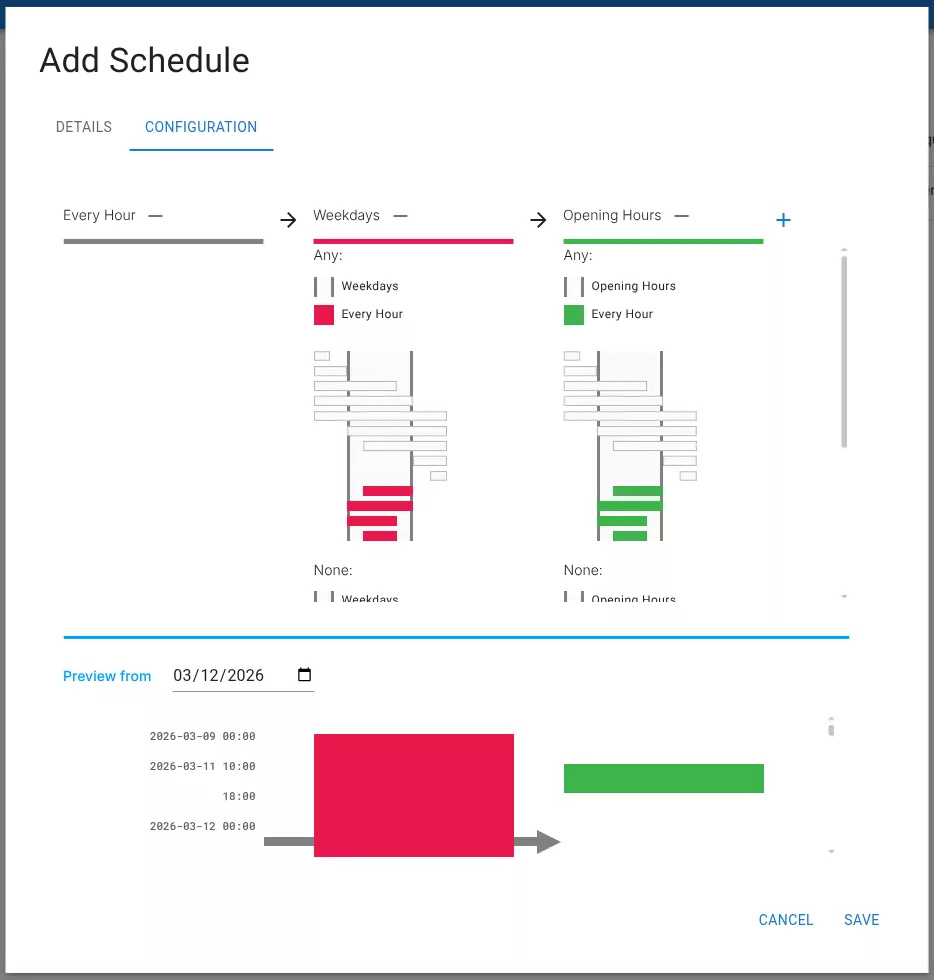
Here you combine time intervals to generate slots.
Typical configuration:
This means:
- generate hourly time units
- keep only weekday units
- keep only units inside opening hours
Use + to add additional intervals.
Preview generated slots
The preview section shows the actual generated time slots for a selected date.
This helps verify that the schedule behaves as expected.
Save
Click Save to create the schedule.
Related resources
Understand the concept
Reference